MultiCommander 17 Preview: Major New Features and a Completely Rebuilt File View
MultiCommander 17 Preview contains lots of changes, including several major new features and one of the largest internal UI rewrites in the history of MultiCommander.
This release introduces File Tags and Comments, folder-specific settings, structured CSV and Parquet viewing, a completely rewritten List/Grid view, (Used for File View, Folder Tree and most other UI components that are showing a Grid or List), a new keyboard customization system, and preview support for extensions written in .NET and C#.
Because many of the core List and Grid components have been rewritten, Since there are so many customization options there is no chance for me to test all combination. Your feedback during the preview period is especially important.
Organize Files with Tags and Comments
Files and folders can now be assigned one or more tags. Tags can have their own name, color, and icon, making it much easier to visually organize files without changing filenames or moving items into different folders.
Comments can also be attached to files and folders. They are useful for notes, reminders, descriptions, review information, or anything else that does not belong in the filename.
Assigning Tags
To assign tags to files or folders:
- Select one or more items.
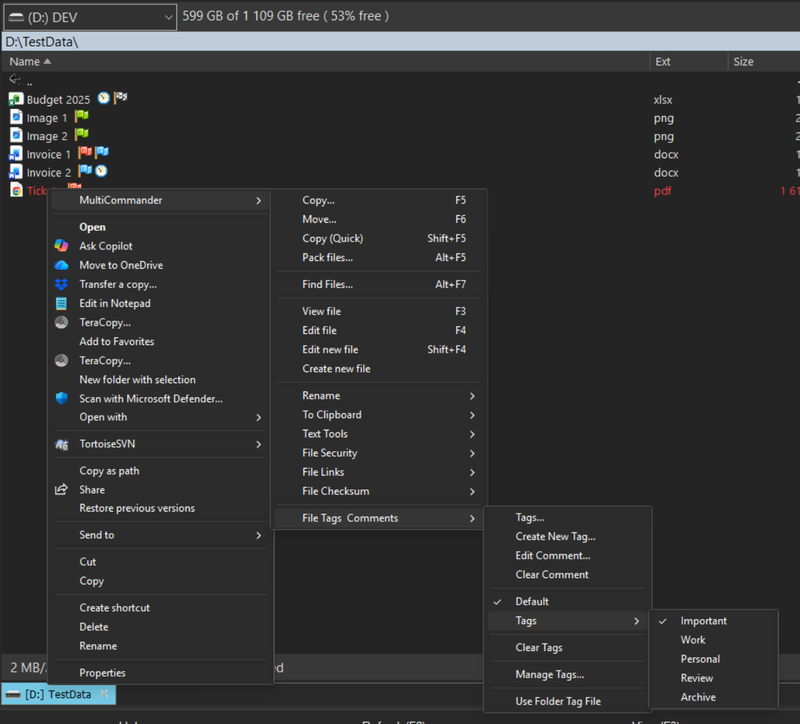
- Right-click the selection.
- Open File Tags & Comments.
- Select an existing tag, or choose Tags... to open the complete assignment dialog.
Choose Create New Tag... when you want to create a tag and immediately assign it to the selected items.
MultiCommander includes several initial tags, such as Important, Work, Personal, Review, and Archive. These can be renamed, recolored, reorganized, or removed.
Adding Comments
Select the files or folders, then choose File Tags & Comments > Edit Comment...
The same comment can be applied to several selected items at once. Use Clear Comment to remove the comment from the selected items.
Showing Tags and Comments in the File View
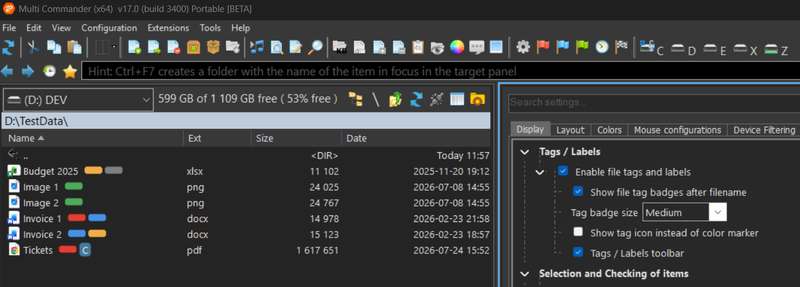
Tags can be displayed as colored badges directly after the filename. Badge size can be configured as Small, Medium, Large, or Large with text. A tag's selected icon can also be shown instead of its color marker.
For a more detailed view, right-click the column header, choose Customize columns..., and add the new Tags and Comment columns.
The tag-related display options are available in the Explorer Panel settings:
- Enable file tags and labels
- Show file tag badges after filename
- Select the badge size
- Show tag icons instead of color markers
- Show the Tags/Labels toolbar
Using the Tags Toolbar
The Tags toolbar provides a fast way to work with frequently used tags:
- Click a tag to add it to the selected files or folders.
- Shift-click a tag to remove it.
- Ctrl-click a tag to toggle it.
- Right-click a tag to select matching files, unselect them, or filter the current view by that tag.
Right-clicking the toolbar's management area also lets you choose which tag groups should be shown.
Managing Tags
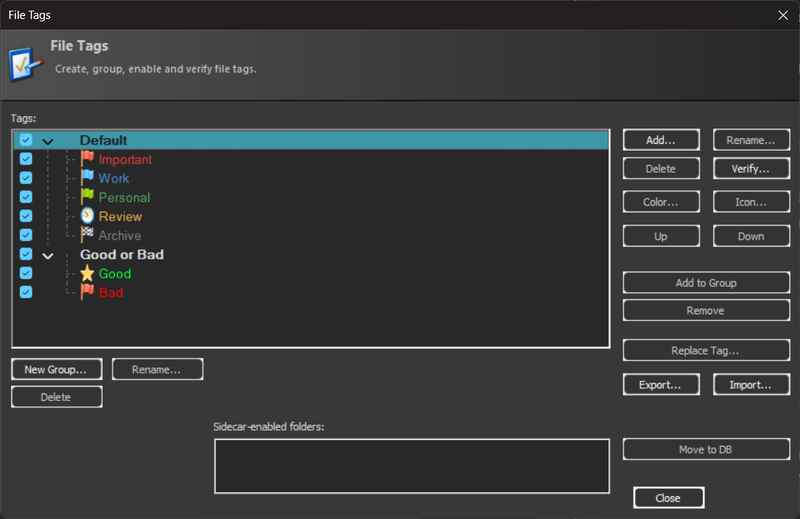
Choose Manage Tags... to:
- Create and rename tags
- Assign colors and icons
- Create nested tag groups
- Enable or disable tags and groups
- Reorder tags
- Replace one tag with another
- Import or export tag definitions
- Verify stored assignments and remove entries for files that no longer exist
By default, tag assignments and comments are stored in MultiCommander's configuration database. If tags should travel with a folder, enable Use Folder Tag File. This creates a .mc_tags.json sidecar file in that folder.
Use Move Folder Tags to Config Database to move those assignments back into the central configuration.
When copying files, enable Copy file tags and comments in the Copy dialog if the metadata should also be copied.
Give Different Folders Their Own Settings
Different folders often need different layouts. A photo folder works best with thumbnails, while a source-code folder may need Details mode, specific columns, sorting, and a filter.
Folder-specific settings let MultiCommander remember those differences and apply them automatically whenever you enter a matching folder.
Saving Settings for a Folder
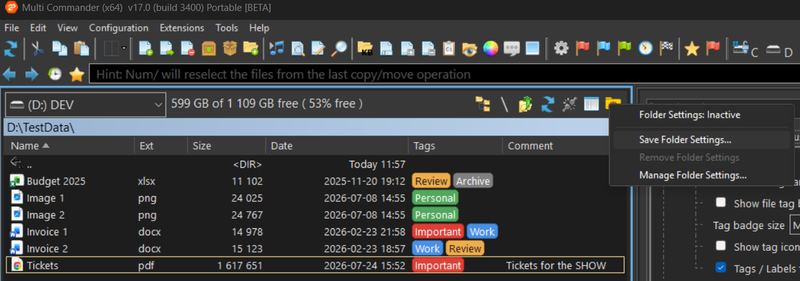
First configure the panel exactly as you want it. Then click the Folder Settings button in the Explorer Panel toolbar, or choose View > Explorer Panel... > Save Folder Settings...
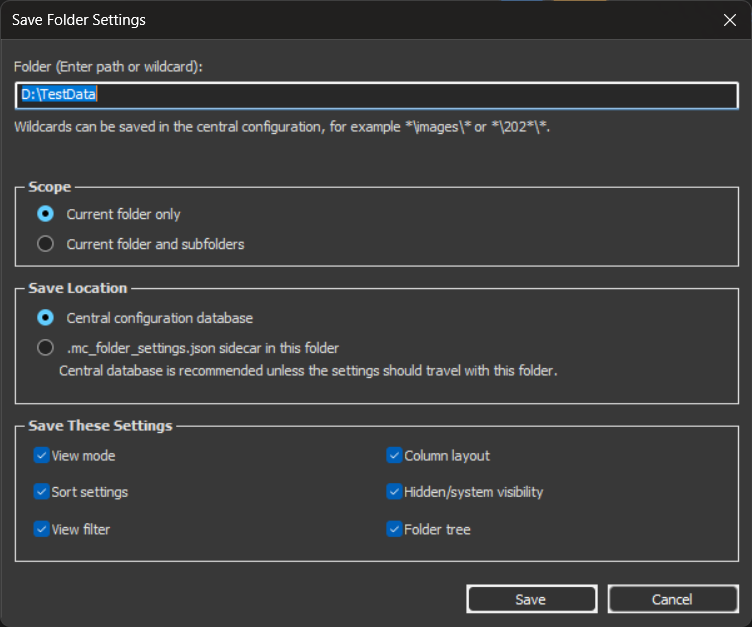
The dialog lets you choose whether the rule applies to:
- The current folder only
- The current folder and its subfolders
You can then select which settings should be captured:
- View mode
- Column layout
- Sort settings
- Hidden and system file visibility
- View filter
- Folder Tree visibility and width
When a matching rule is active, the Folder Settings toolbar icon changes from inactive to active.
Central or Portable Storage
Folder settings can be saved in two ways:
- Central configuration database is recommended for normal use.
- Folder sidecar file creates
.mc_folder_settings.jsonin the folder, allowing the settings to travel with it.
Sidecar files can be used with the current local or UNC folder. Portable sidecars on network or mapped folders must first be enabled in Manage Folder Settings.
Managing Advanced Folder Rules
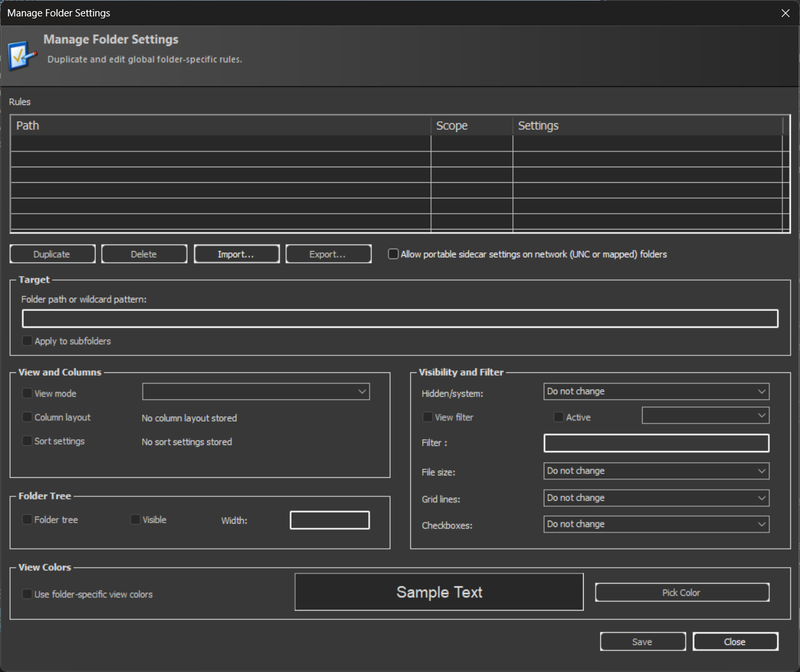
Choose View > Explorer Panel... > Manage Folder Settings...
From here you can edit, duplicate, delete, import, and export central rules. You can also configure additional folder-specific properties such as:
- File-size display units
- Grid lines
- Checkboxes
- View colors
- Folder Tree width
- Simple or advanced filters
Rules can use wildcard paths, for example *\images\*, making it possible to apply the same layout to matching folders in several locations.
View CSV and Parquet Files as Structured Data
MultiFileViewer can now display CSV and Parquet files in a structured Grid instead of showing only their raw contents.
Select a file and press F3 to open it in MultiFileViewer.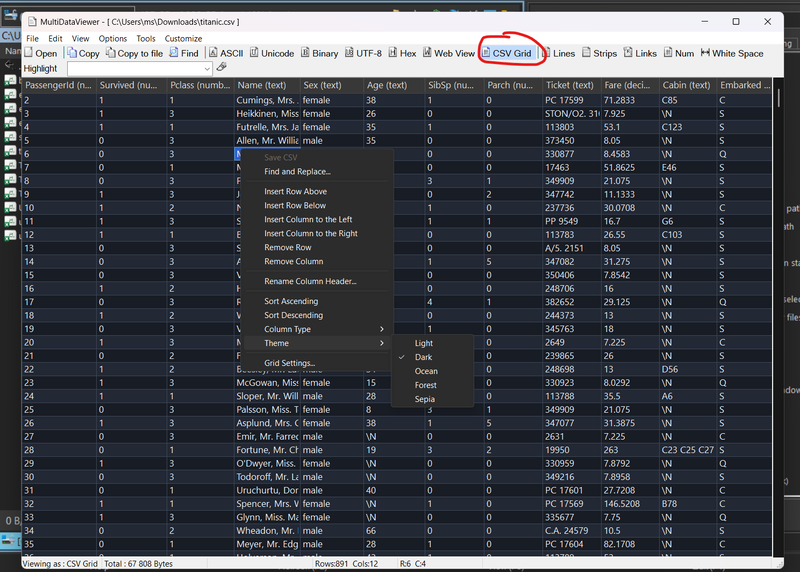
Opening a CSV File
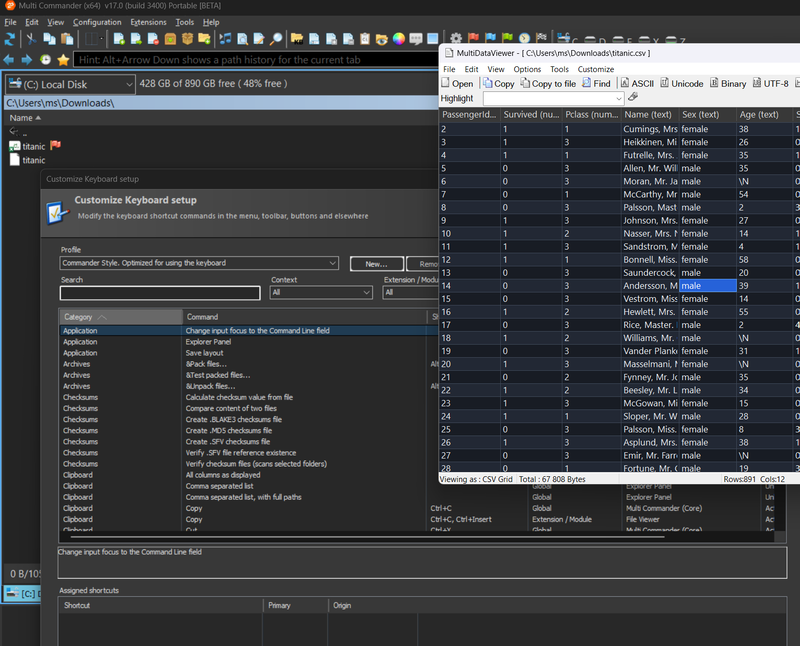
A CSV file can still be viewed as normal text. To switch to the structured Grid, choose View > CSV Grid.
You can also press Ctrl+7 or use the CSV Grid toolbar button.
Before loading the Grid, MultiFileViewer detects the encoding, separator, and whether the first row appears to contain column headings. The Open CSV dialog lets you correct those choices when necessary.
Supported separators include:
- Comma
- Semicolon
- Tab
- Pipe
- A custom separator character
UTF-8, UTF-16, and the current Windows ANSI code page are supported.
Working with the Grid
Once the file is loaded, you can:
- Click a column heading to sort it
- Right-click a column to choose ascending or descending sorting
- Search the Grid with Ctrl+F
- Continue to the next match with F3
- Copy and paste rectangular cell selections
- Change a column's type to Text, Number, Decimal, or Date
- Adjust Grid lines, automatic column sizing, row colors, and themes
CSV files are editable. Select and double-click a cell to edit it, or right-click the Grid to open commands for:
- Find and Replace
- Inserting or removing rows
- Inserting or removing columns
- Renaming column headings
- Changing column types
- Selecting a Grid theme
Press Ctrl+S, choose Tools > Save CSV, or use Save CSV in the Grid's context menu to save the changes back to the original file. MultiFileViewer will warn you about unsaved changes when closing or leaving the Grid.
Opening Parquet Files
Parquet files open directly in the structured Grid. Their columns and data types are read from the file automatically.
Parquet viewing is currently read-only, so its cells and structure cannot be modified or saved. Searching, copying, and sorting are still available. For very large files, the preview loads up to one million rows.
A Completely Rewritten File View, Folder Tree, and Grid System
The File View, Folder Tree, and many other List and Grid components throughout MultiCommander have been rewritten.
This is not simply a visual refresh. The underlying UI system has been redesigned for improved performance, customization, rendering, and future development.
Normal workflows should remain familiar, but almost every interaction with a list deserves testing:
- Keyboard navigation and focus
- File selection and checkboxes
- Selection-box dragging
- Scrolling
- Column resizing and reordering
- Sorting
- Inline rename
- Context menus
- Drag and drop
- Folder Tree expansion and navigation
- List, Details, and Thumbnail modes
- Light and dark themes
- High-DPI and multi-monitor configurations
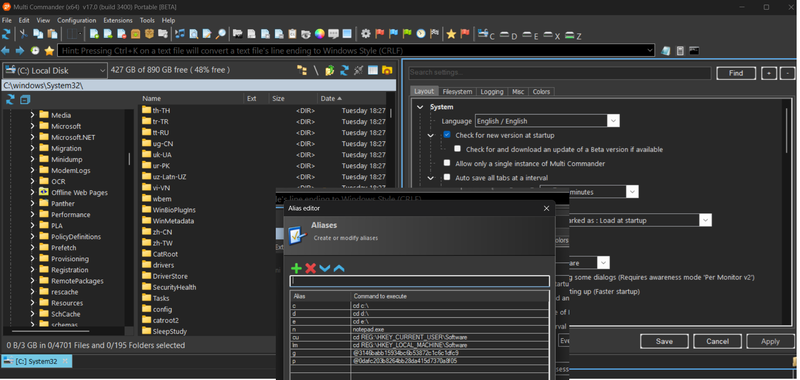
This rewrite affects more than the two main file panels. If you find a rendering or interaction problem in any dialog that displays a List or Grid, it may be related to the new component.
Please report anything that feels wrong, even if it appears minor.
Keyboard Customization Has Been Rebuilt
The Keyboard Customization dialog has also been completely rewritten. Many more areas of MultiCommander can now register configurable commands, including individual views, dialogs, extensions, and the new folder and tag features.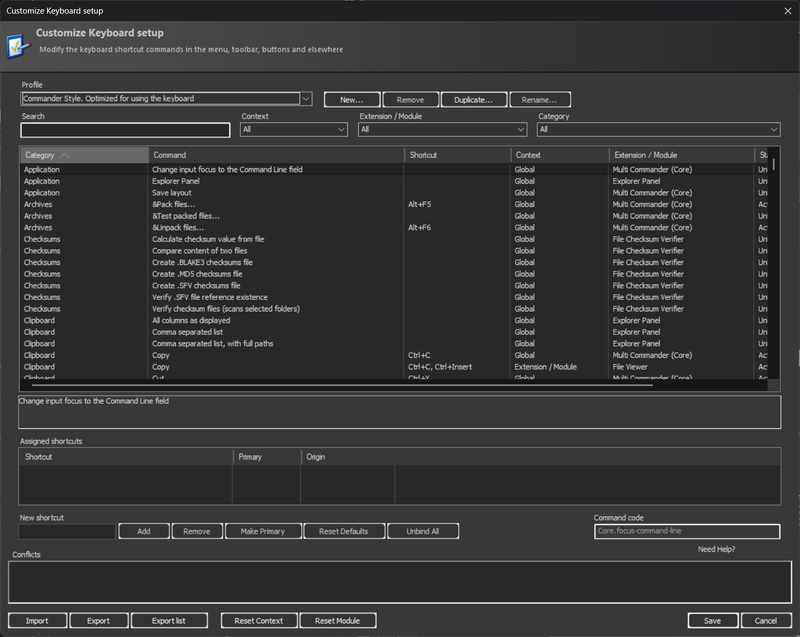
Open it from Configuration > Keyboard Customization...
Assigning a Shortcut
- Select or create a keyboard profile.
- Use the Context, Extension/Module, and Category filters, or the Search field, to locate a command.
- Select the command.
- Click the New shortcut field and press the desired key combination.
- Click Add.
- Review any reported conflicts.
- Click OK to save the configuration.
Commands are organized into Global, Extension/Module, View, and Dialog contexts. This makes it possible for the same shortcut to perform different actions depending on which part of MultiCommander currently has focus.
Profiles and Multiple Shortcuts
The new system supports keyboard profiles. You can create a new profile or duplicate an existing Default, Commander Style, or Windows Explorer style profile before customizing it.
A command can now have several shortcuts. The first is marked as the primary shortcut, but any assigned shortcut can run the command.
Use:
- Make Primary to promote a secondary shortcut
- Remove to remove one shortcut
- Unbind All to leave the command without shortcuts
- Reset Defaults to restore the selected command
- Reset Context or Reset Module for broader resets
- Resolve Conflict to remove a conflicting assignment
Keyboard profiles can also be imported from or exported to JSON. Export list creates a readable list of the current assignments.
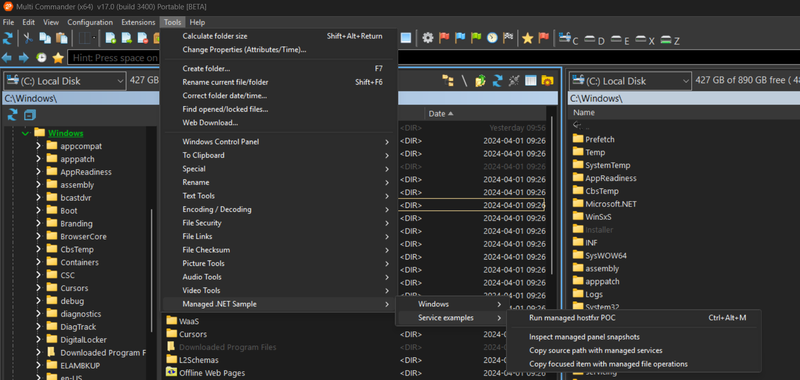
Preview Support for Extensions Written in .NET and C#
MultiCommander has traditionally used native C++ extensions. Version 17 introduces preview support for managed extensions written in C#.
The first release supports three managed extension types:
- Application extensions
- Read-only file-property providers
Application extensions can register commands, keyboard shortcuts, Tools-menu items, Explorer context-menu actions, Custom Commands, MultiScript functions, file handlers, settings, panel operations, and WPF interfaces.
This does not yet replace every native extension type, which is why managed extension support is marked as Preview.
A Few More Additions
The v17 Preview also adds:
- WSL integration: Installed Windows Subsystem for Linux distributions now appear under the
NET:device. OpenNET:and select the distribution marked with(WSL)to browse it. - BLAKE3 checksums: The Checksum extension can now create, compare, and verify BLAKE3 checksum data, including
.blake3files.
Please Help Test the Preview
The File View, Folder Tree, keyboard system, and many shared List and Grid controls have changed substantially. Preview testing is therefore especially valuable for this release.
When reporting a problem, please include:
- The exact MultiCommander build
- Your Windows version
- The affected view or dialog
- The filesystem or location being browsed
- Steps needed to reproduce the issue
- What you expected to happen
- What happened instead
- A screenshot or short recording when possible
- Display scaling, theme, and multi-monitor details for visual problems
Thank you for testing MultiCommander 17 Preview and helping make the final release as stable as possible.